Pull a Dino Controls
Every input that matters — from the power slider to Shop → Codes and lobby unlocks.
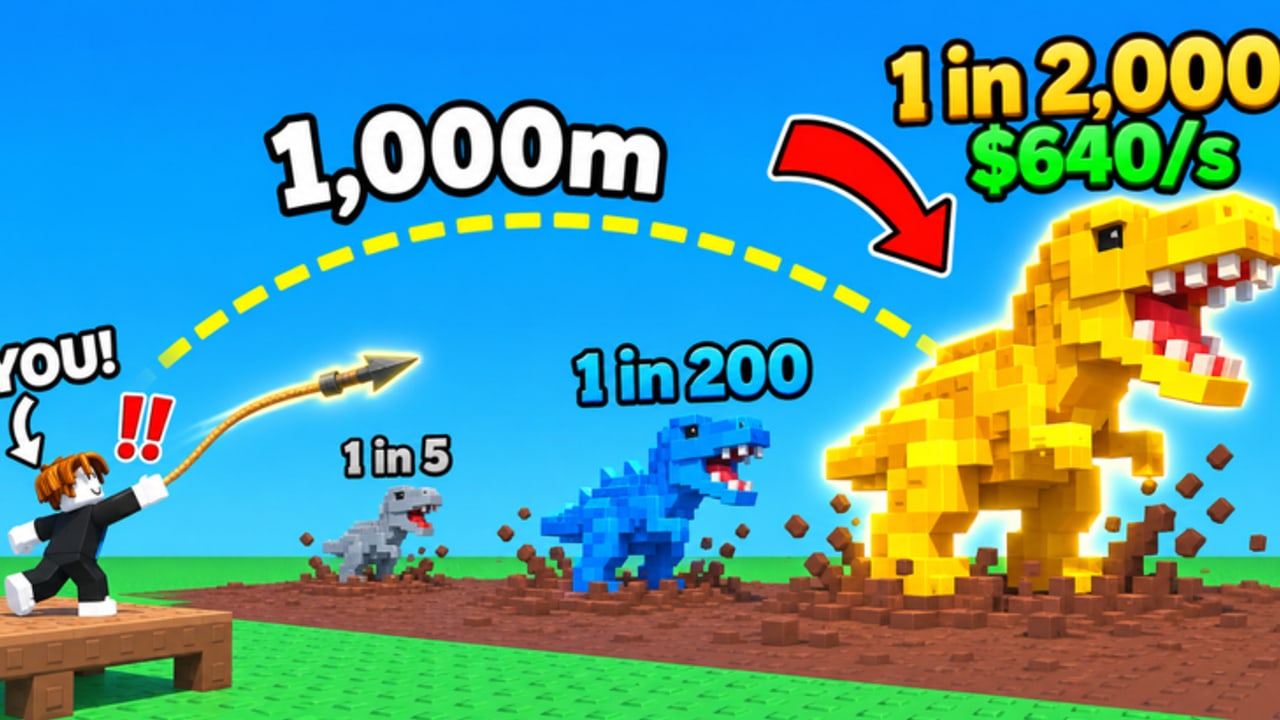
Pull a Dino works on PC, phone, tablet, and console. The fantasy is the same on every device: stop the throw slider at the top, pull a dino from the mud, place it on your plot, train, and redeem rewards. This page maps the controls and UI paths you will use constantly, including Shop → Codes and lobby Skeleton / Egg unlocks with E.
If you are brand new, skim Getting Started after you learn where the buttons live. For slider mastery, continue to Perfect Throw.
Core loop inputs
Movement
Use standard Roblox move controls for your platform (WASD / thumbstick / on-screen stick). Walk between plot, benches, throw pad, Shop, and lobby NPCs without sprinting through other players’ animations in a six-person server — see Players Hub etiquette.
Starting a throw
Step onto the throw interaction / pad area and start the harpoon throw using the on-screen throw control or the platform confirm button. The power slider appears.
Stopping the slider (most important skill)
- Goal: stop at the top of the meter for maximum distance.
- PC: click or release the throw key/button at the peak — pick one method and practice it.
- Mobile / tablet: tap firmly at the peak; avoid sliding your thumb late.
- Console: press the confirm / throw face button at the peak; watch for display lag.
Warm up without luck buffs. Timing notes and drills: Perfect Throw.
Pulling and placing dinos
After a hit, follow the pull animation, then place the dino on an open plot slot so cash/sec starts. Use the game’s place/select UI (tap/click the dino or slot prompts). If slots are full, compare cash/sec using Best Income Dinos before swapping.
Training benches
Walk to benches and use the interact / train prompt to spend cash for strength. More strength → farther throws → better biomes. Full upgrade logic: Train Strength.
Shop, codes, and menus
Opening the Shop
On the left side of the HUD, click/tap Shop (label may appear as a shop button/icon depending on device scaling).
Redeeming standard codes
- Open Shop.
- Open Codes.
- Enter the code exactly (case sensitive).
- Hit Redeem.
- If the reward is luck on your next throw, go straight to a warmed-up perfect throw.
Live lists: Codes. Never redeem mid-distraction in a hyped lobby.
Other shop tabs
Harpoon and related upgrades may live in shop or world vendors depending on patch UI. After buying a harpoon tier, take practice throws before spending luck.
Skeleton & Egg secret unlocks (E)
Some rewards use lobby objects instead of Shop codes:
Skeleton codes
- Go to the Skeleton in the lobby.
- Press E (PC) or the on-screen / console interact control that maps to interact.
- Enter the secret code in Enter Secret Code.
- Confirm Unlock.
Secret Egg codes
- Go to the Egg in the lobby.
- Press E / interact.
- Enter the secret code.
- Confirm Unlock.
These are easy to miss if you only look inside Shop. When a code list mentions Skeleton or Secret Egg, use this path.
Platform-specific tips
PC
Highest precision for slider peaks. Bind a comfortable key if the game allows customization through Roblox settings; otherwise commit to mouse click timing. Use chat muting during hunt throws.
Mobile / tablet
Hold the device steady. Large thumbs clip late peaks — try a lighter tap rhythm. Keep brightness high enough to see the meter outdoors. UI buttons (Shop, Codes) can sit near the thumb zone; avoid accidental menu opens mid-slider.
Console
Confirm which face button starts/stops the throw in your first minute. Input plus TV lag makes early peaks feel different from PC — practice ten throws every session. Use the interact button consistently for Skeleton/Egg.
Lantern UI you should also click
After the Lantern Update:
- Clan panels — join/create, upgrades, Top 3 luck (up to +20%).
- Dino Eggs / daily tasks — open, complete, hatch pets.
- Lucky Board — claim/spin before coded hunts.
Details: Clans & Eggs. Planner: Tools.
Troubleshooting “controls feel wrong”
- Slider always late: you are reacting to the fall — commit earlier.
- Cannot open Codes: you opened settings or another tab — return to Shop → Codes.
- Secret code fails in Shop: it may be Skeleton/Egg only.
- Interact does nothing: stand closer, face the Skeleton/Egg, press E/interact again.
- Throw does nothing: check whether a menu is still open stealing input.
Practice routine (five minutes)
- Move plot → bench → pad without opening menus.
- Five unboosted throws focused only on top stops.
- Open Shop → Codes, then close without redeeming (muscle memory).
- Walk to Skeleton and Egg and press interact once each (no code needed).
- Place or rearrange one dino on the plot.
Do this after any big update in case UI shifts. Next major checkpoint: 21 November 2026, 17:00 UTC.
Related links
- Players Hub — lobby etiquette.
- Guides Hub — full how-tos.
- Tier List — what you just placed.
- Scripts — unrelated to learning real inputs.
Master the buttons once, then forget them — your attention belongs on the top of the slider.
Frequently Asked Questions
Quick answers to the most common Pull a Dino questions.
How do I redeem codes in Pull a Dino?
Open Shop on the left, click Codes, type the code exactly, and redeem. Skeleton/Egg codes use lobby interact instead.
What button interacts with the Skeleton or Egg?
On PC press E while close to the Skeleton or Egg. On mobile/console use the on-screen or controller interact control.
How do I stop the throw slider?
Use your platform's throw/confirm input at the top of the meter. Timing matters more than which button you prefer.
Does Pull a Dino support console?
Yes. It supports PC, phone, tablet, and console — practice slider timing because display lag can differ.
Where do I place dinos after a pull?
Use the place/select prompts to put the dino on an open plot slot so it earns cash per second.